Participating in the Movement Challenge
- Before You Start
- Join on iPhone
- Join on Android
- Viewing Your Progress
- QR Codes
- Changing Permissions Later
The Movement Challenge uses your device's step data to place you on the conference leaderboard. You must use the ASCA Conferences mobile app to participate; the web version can show conference content, but it cannot read step data from your phone.
Before You Start
-
Open the app and sign in to your account.
-
Confirm you are viewing the correct conference. To learn how to switch your conference, click here.
-
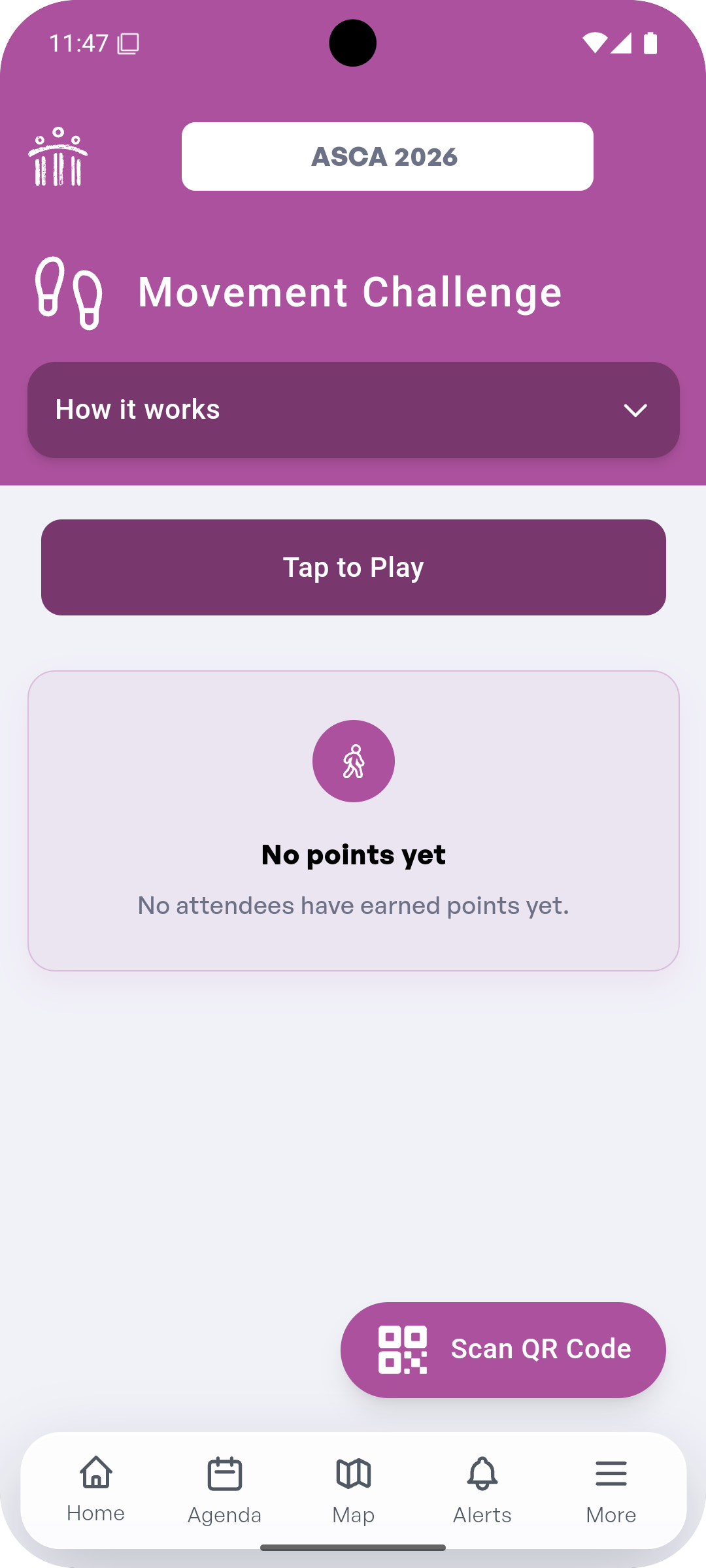
From the dashboard or app menu, tap Movement Challenge.
-
Tap Tap to Play.
Join on iPhone
-
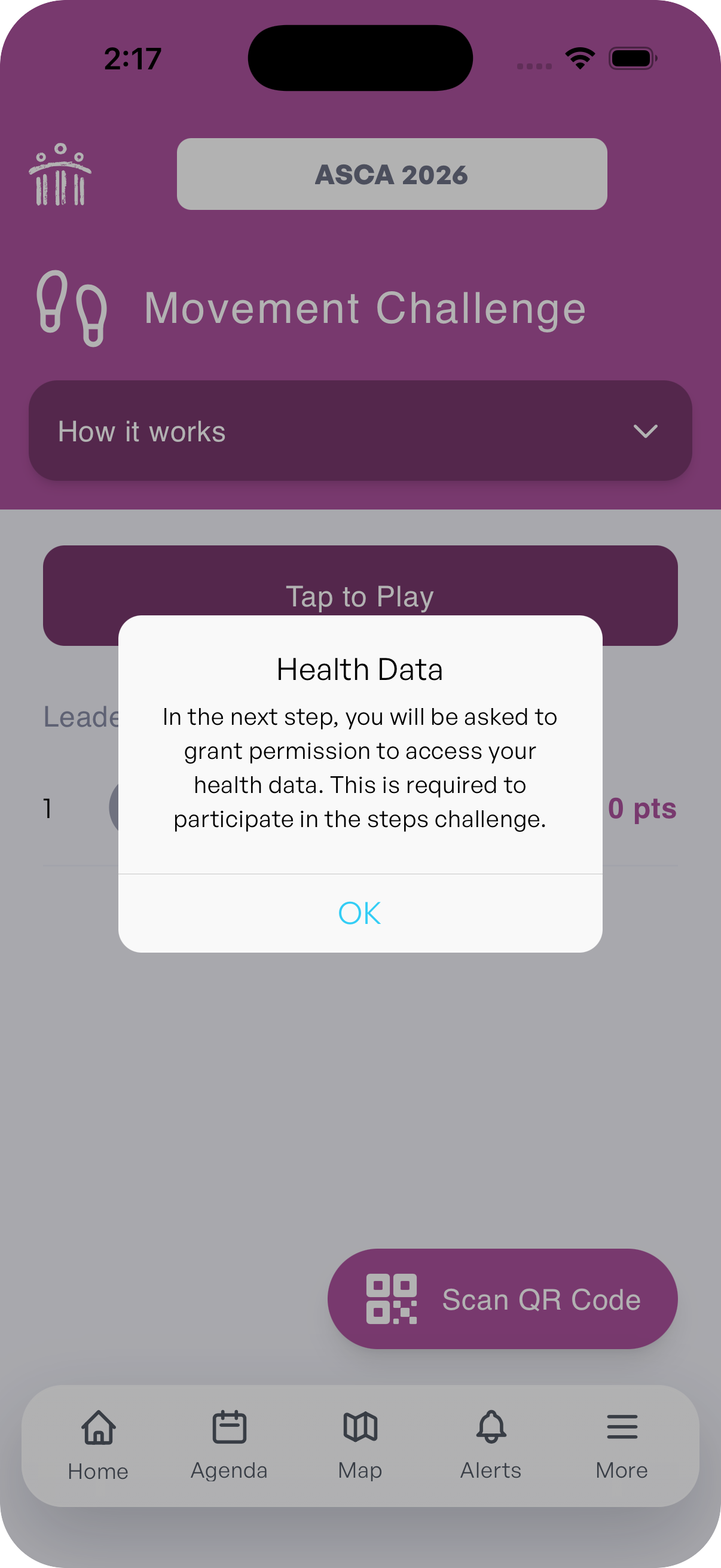
After tapping Tap to Play, review the Health Data message in the app.
-
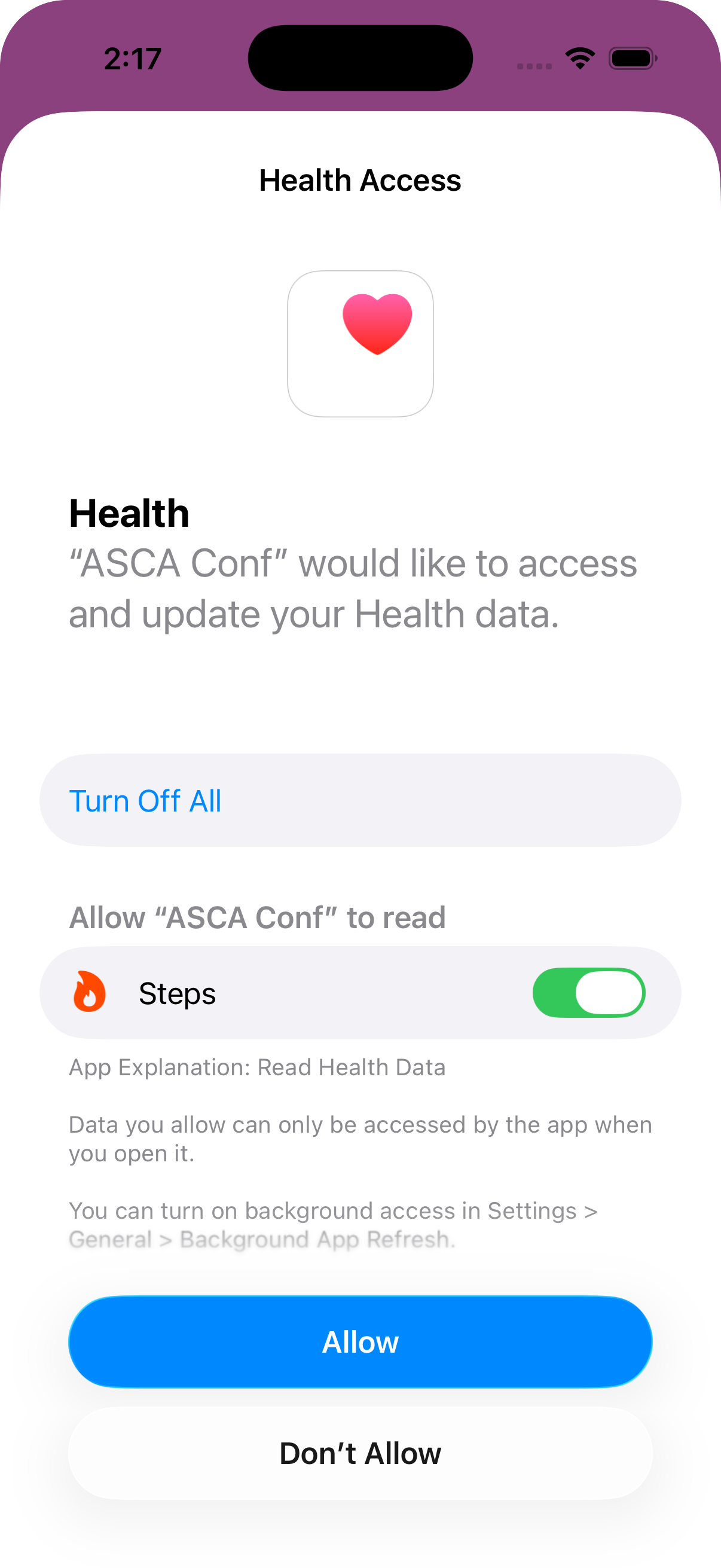
Tap OK to continue to the iPhone Health permission screen.
-
Turn on Steps if it is not already enabled.
-
Tap Allow.
-
Return to the Movement Challenge page. Your steps will update periodically during the conference.
Join on Android
-
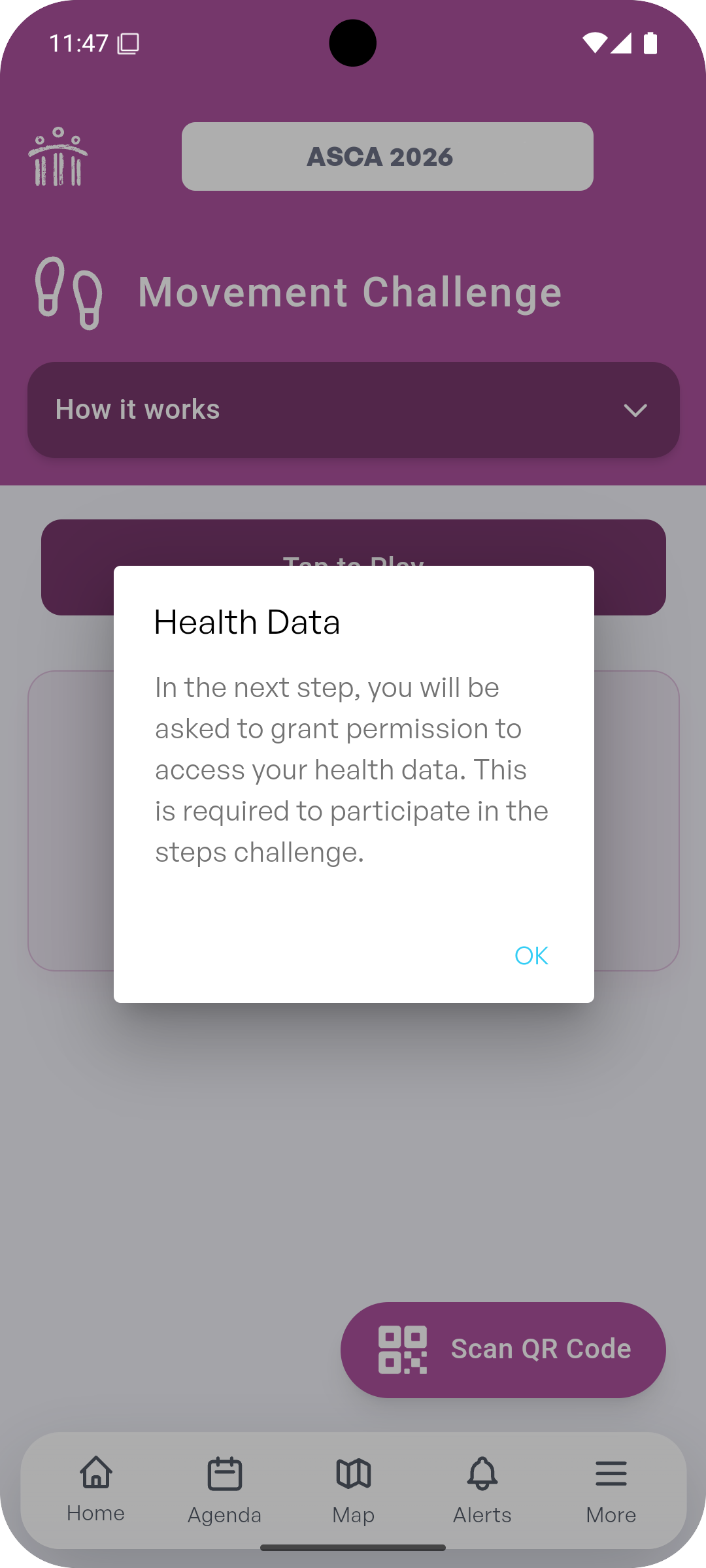
After tapping Tap to Play, review the Health Data message in the app.
-
Tap OK to continue to the Android permission screen.
-
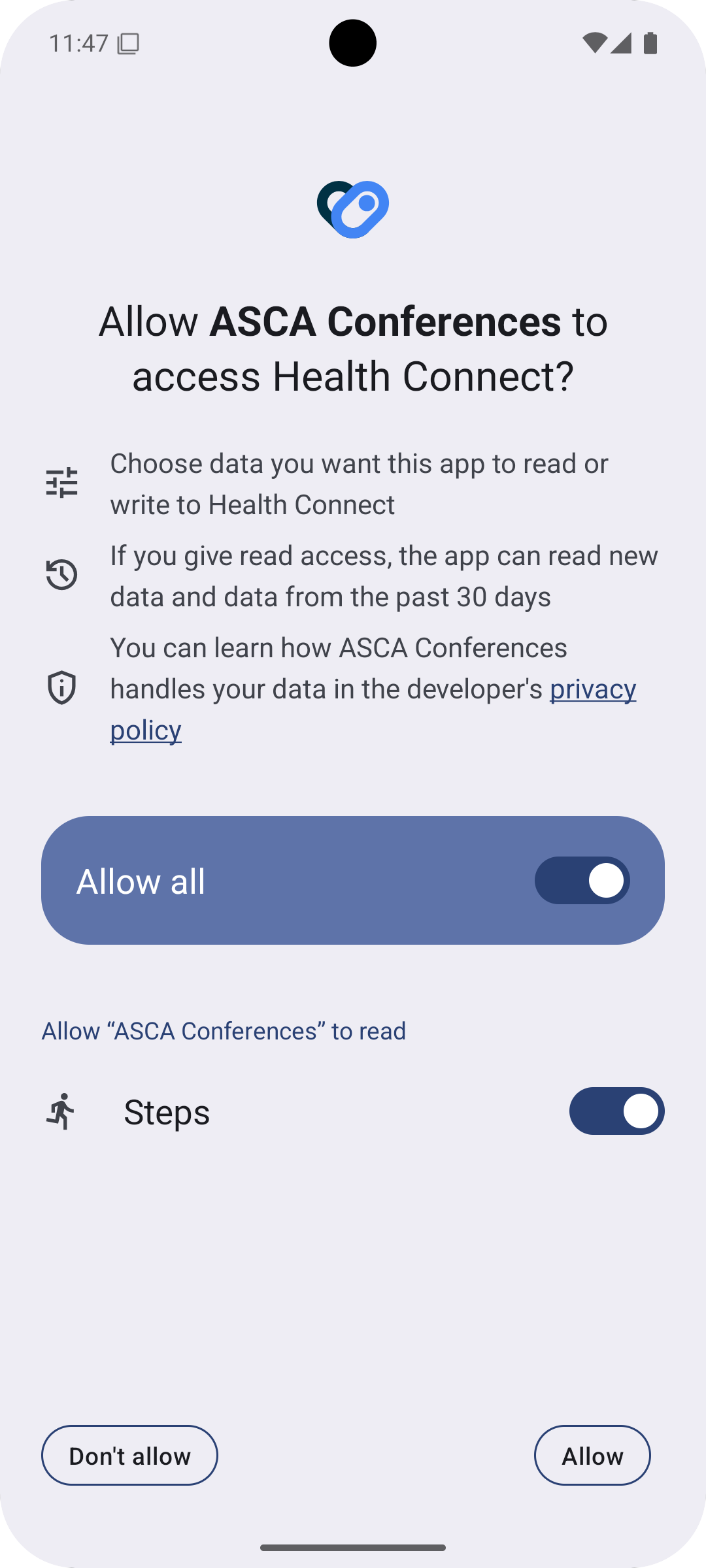
Tap Allow when Android asks for physical activity or step access.
-
If Android asks for background access, allow it so the app can update your steps while the conference is active.
-
Return to the Movement Challenge page. Your steps will update periodically during the conference.
Viewing Your Progress
Once step access is enabled, the Movement Challenge page shows your position on the leaderboard. Tap Check Your Progress to view your daily step counts.
QR Codes
QR codes give you points in the Movement Challenge. When you find a Movement Challenge QR code during the conference, open Movement Challenge and tap Scan QR Code to scan it with your camera.
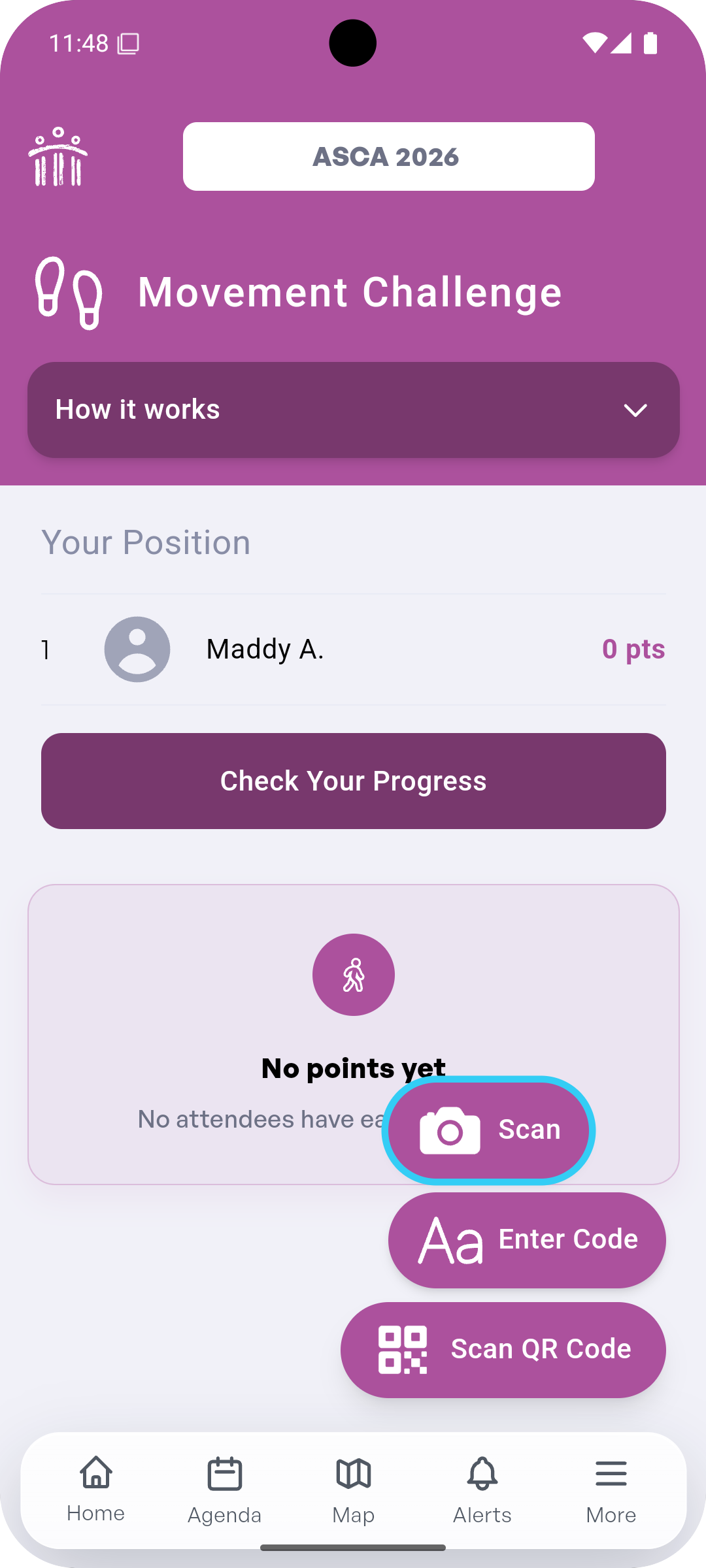
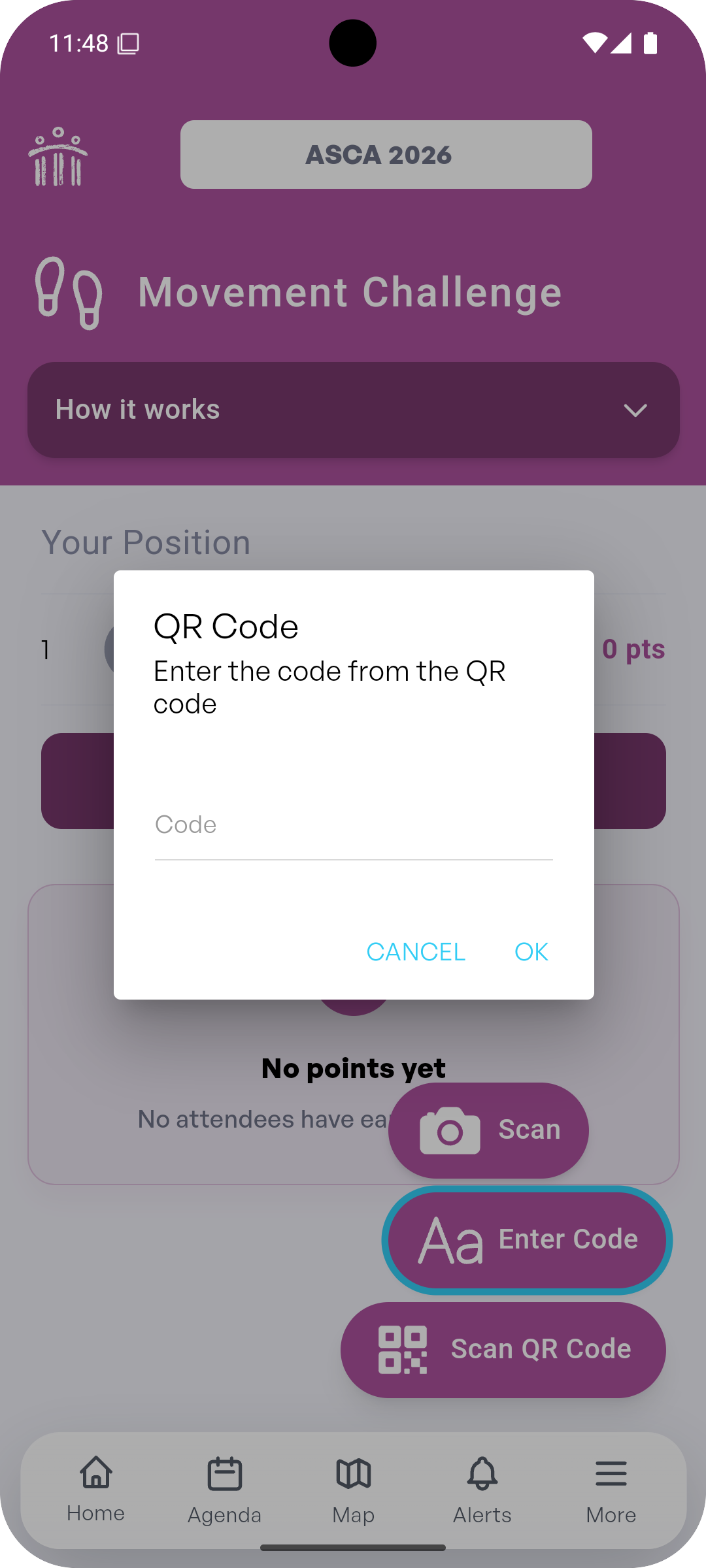
If you cannot scan the QR code, tap Enter Code to type the code manually.
Changing Permissions Later
If you previously denied access, open Movement Challenge and tap Tap to Play again. The app will show a Health Data message and guide you to the device settings screen where you can enable step access.
On iPhone, check the ASCA Conferences permissions in the Health app or iOS Settings. On Android, check the ASCA Conferences app permissions and allow physical activity or step access.